Vacation Lighting Scheduler for Crestron
Makes an empty house look lived-in, using the way that house really uses its lights.
While the family is at home, the driver notes which lighting scene is on in each room, every five minutes. When they go away, it plays that week back: the kitchen comes on when it usually does, the landing goes off when it usually does, and the lounge stays on late on a Friday. A fixed timer can't do that.
The store lists this product as Vacation Recorder for Crestron Lighting. In Crestron Home it's called Vacation Lighting Scheduler V2.
What it does
- Records the house. Every five minutes, the driver stores the active lighting scene in each room. It keeps one week: 288 five-minute slots a day, seven days.
- Plays it back while the house is empty. Press I'm going away on the panel, or start it from programming, and the driver recalls the scenes for each time of day. I'm back stops it and recording carries on.
- Starts on day one. Until a full week has been recorded, the driver fills the gaps by simulating a lived-in day. See How Vacation Mode decides what to do.
- Follows the seasons. A simulated evening starts around local sunset, so the lights don't come on in broad daylight in June.
- A/V events. Two randomised windows a day, one morning and one evening, that programming can use to switch on a television or some music.
How Vacation Mode decides what to do
The driver decides when Vacation Mode starts, based on how much has been recorded, and tells you which it chose.
| Recorded so far | What Vacation Mode does |
|---|---|
| At least one day filled to 80% | Replays the recorded week. A day with gaps borrows from a complete day at the same time of day. |
| Some recording, but no complete day | Replays what was recorded and simulates the rest. |
| Nothing yet | Simulates a lived-in day from each room's All On and All Off lighting scenes. |
A day reaches 80% after about a day of normal use.
A simulated day has a shape: a short morning in one or two rooms, dark through the day, rooms coming on one after another from around sunset, then going off one by one until the last light goes out between 22:30 and 23:30.
On the panel
The driver adds a Vacation Mode tile. Its page shows what the house is doing, and the I'm going away and I'm back buttons.
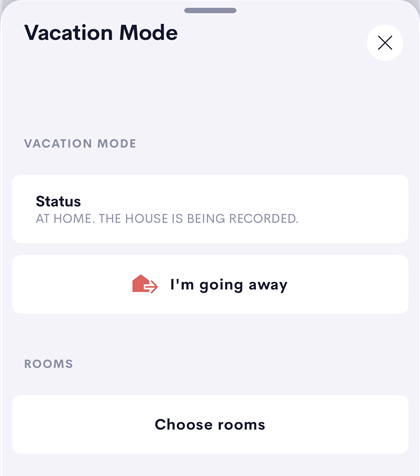
See Using Vacation Mode.
The Diagnostics & Setup app
The driver comes with a browser app served from the processor, opened from the driver's configuration page (Diagnostics & Setup).
| Tab | What it's for |
|---|---|
| Coverage | The recorded week as a heatmap, how full each day is, and what Vacation Mode would do if started now. Start and end Vacation Mode, or record now. |
| Rooms | Which rooms take part while away. |
| Events | Today's A/V window times, and the event names to use in programming. |
| Settings | Where the tile appears: the Home page, the room page, or both. |
| Troubleshooter | Nine checks, each with a fix, and a report to copy for support. |
| Activity | What the driver has recorded and replayed recently. |
What you need
- A Crestron Home 4-series processor.
- The processor's own Web API enabled (Settings → System Control Options → Web API Settings), followed by a processor reboot. The setting only takes effect after a reboot.
- Lighting scenes in the rooms you want to take part. The driver records and replays scenes only.
- For simulation, lighting scenes named All On and All Off in each room. Crestron Home rooms usually have them already.
- A licence key: a 30-day trial or a full key from the product page. The processor needs internet access to activate it. After that, the licence works offline.
Upgrading from the previous Vacation Lighting Scheduler
Version 2 keeps the same product SKU, so your licence key carries over. It also reads the previous driver's recording from the same place on the processor, so the recorded week carries over too.
Room choices don't carry over. Crestron Home keeps the previous driver's settings where another driver can't read them. Every room takes part until you change it, which matches how the previous driver behaved.
Add the new driver, check the rooms, point your programming at the new driver's actions and events, and then remove the previous driver. Don't run both.